


Learn how to register, log in, update software and change password on your OBDSTAR ECU Master with this straightforward guide.
Sep 1: Software Download
Go to [www.obdstar.com/DownloadStd_Downloadcenter.html]
Download ECU Master PC software.
Operating system: Windows 10 or above.
Language: English, Chinese
Sep 2: Registration
Go to Personal Center -> Login screen.
Tap Register at the bottom right.
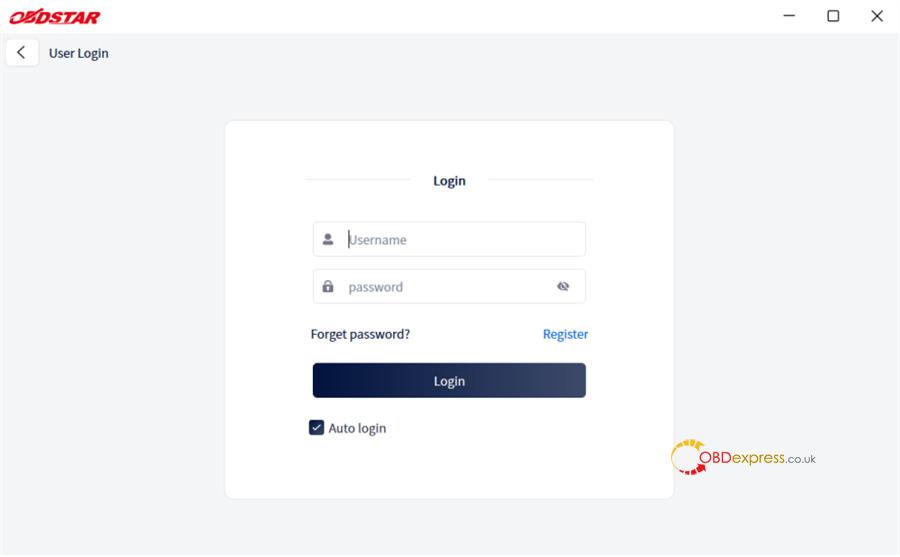
Fill out the user info and contact info. When confirmed, tap Log in now.
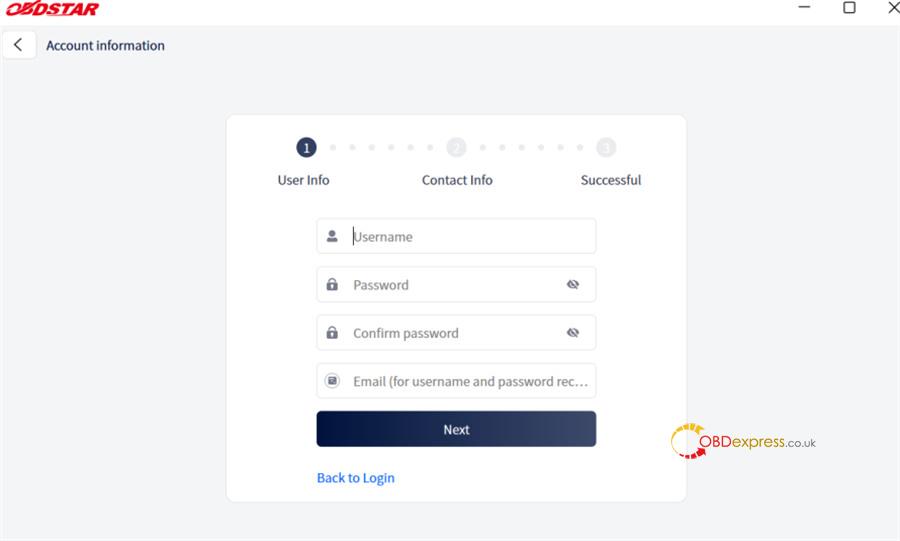
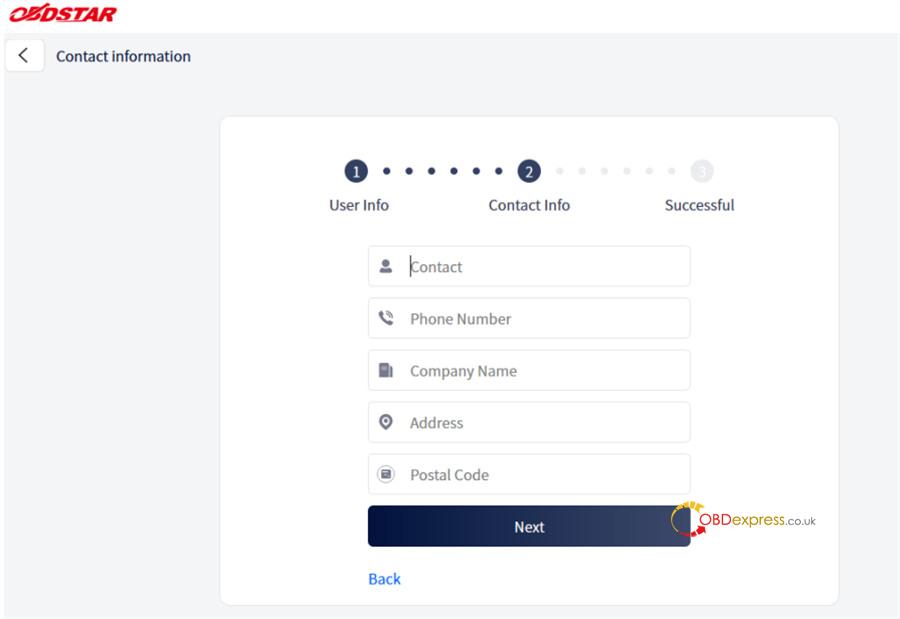
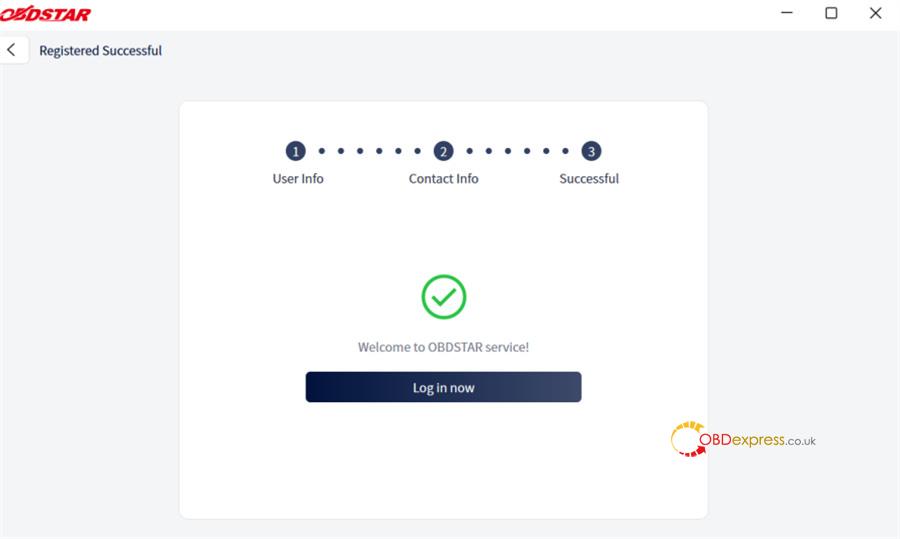
Sep 3: Login & Password Reset
1.Sign In: Enter your username/password -> Tap Login.
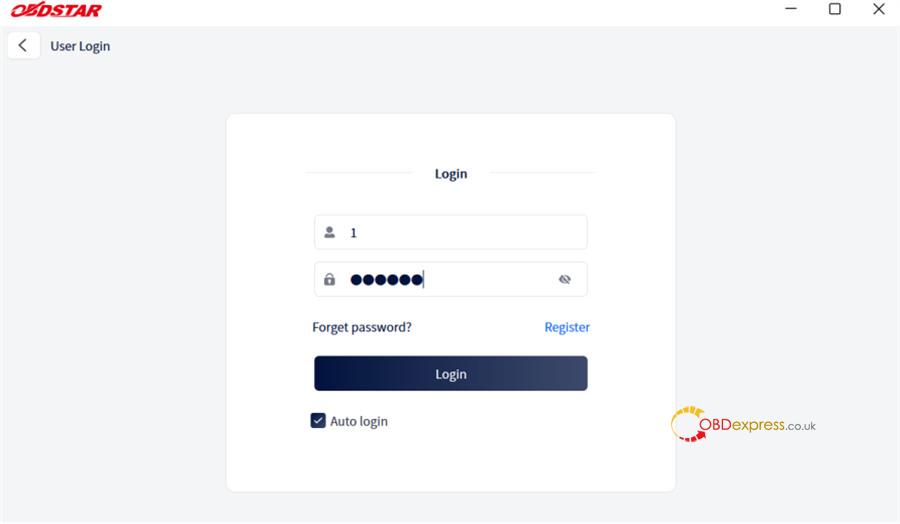
2.Password Recovery: Click Forgot password? -> Verify identity -> Set new password.
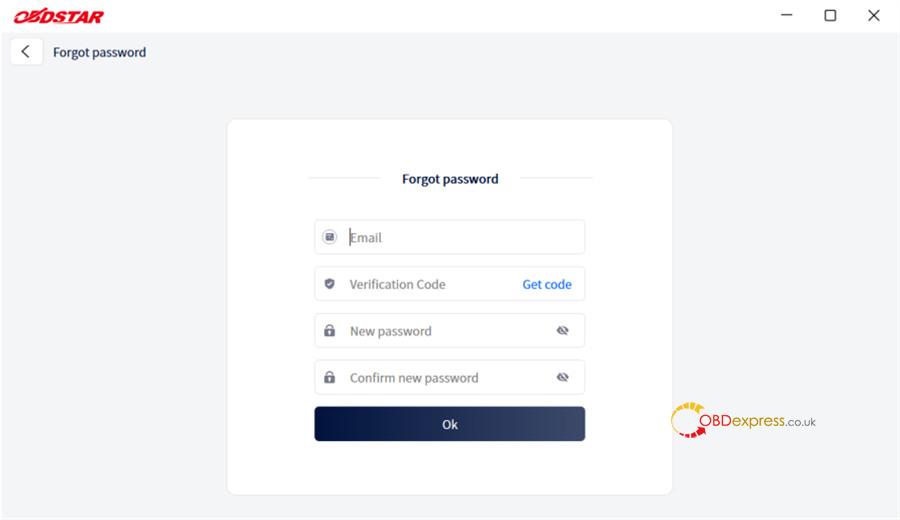
Step 4: Software Update
Follow these steps to upgrade your ECU Master:
1: Log In: You have to be signed in to grab updates!
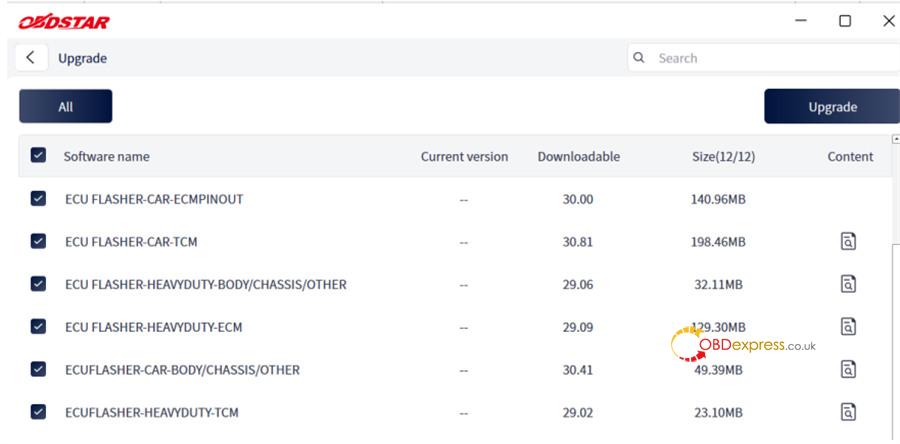
2: Head to Upgrades: Go to the main Upgrade dashboard. The tool will automatically check for what’s new and check all the boxes for you.
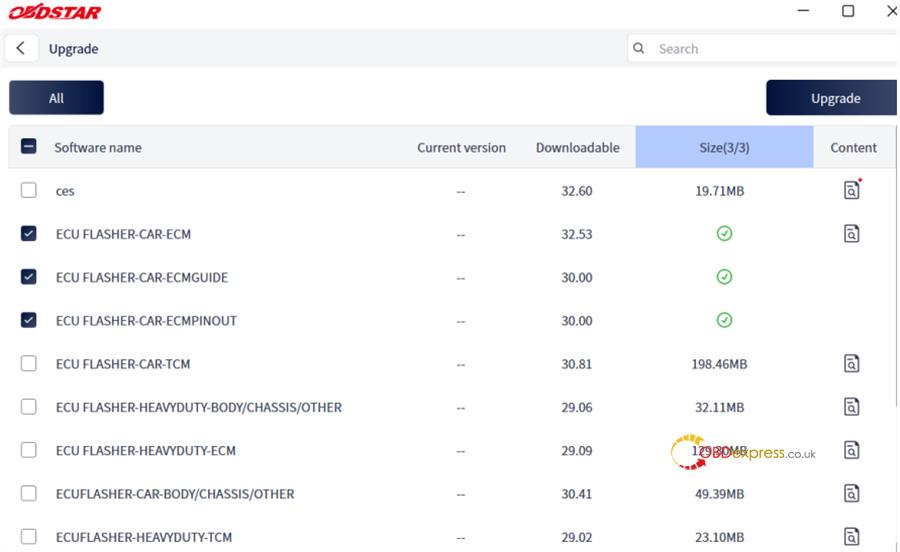
3: Pick and Choose: Uncheck any vehicle brands or optional data packages you don’t need to save space.
Heads up: Essential system files have grayed-out checkboxes—you can’t uncheck these because your tool needs them to survive!
4: Use the Search Bar: Looking for something specific? Type the vehicle make or software name into the Search Bar at the top right.
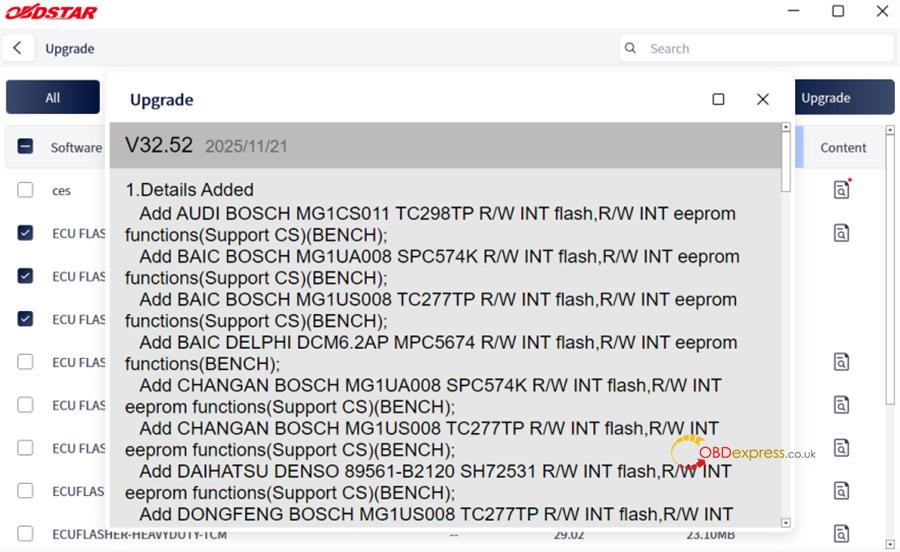
5: Read the Patch Notes: Want to know what changed? Click the little info icon on the right side of any software to see the release notes.
6: Start the Download: Hit the Upgrade button in the top-right corner to start downloading.
Step 5: Personal Center & Dealer Info
You can go to Personal Center to manage your profile:
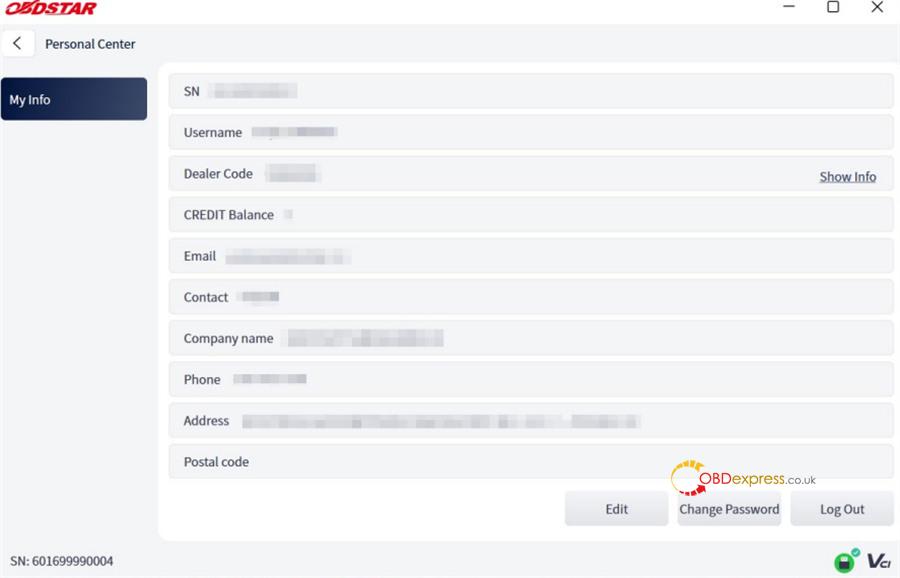
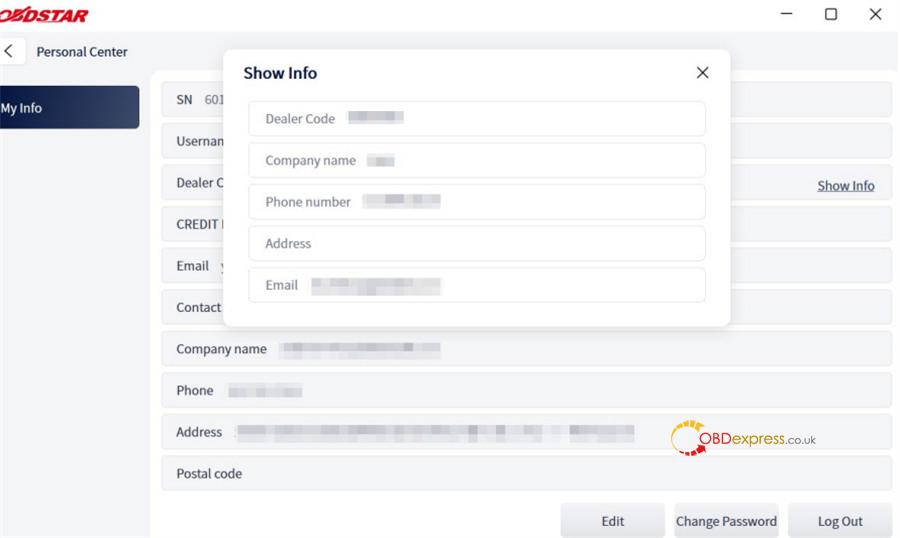
- Dealer Contact: Click Show Info next to “Dealer Code” to view distributor information.
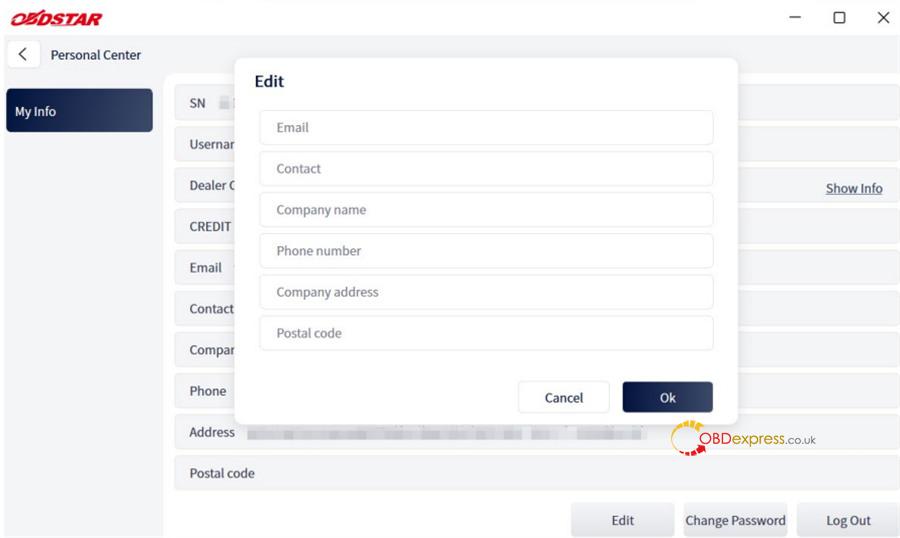
- Edit Profile: Tap Edit (bottom of screen) to update workshop contact details.
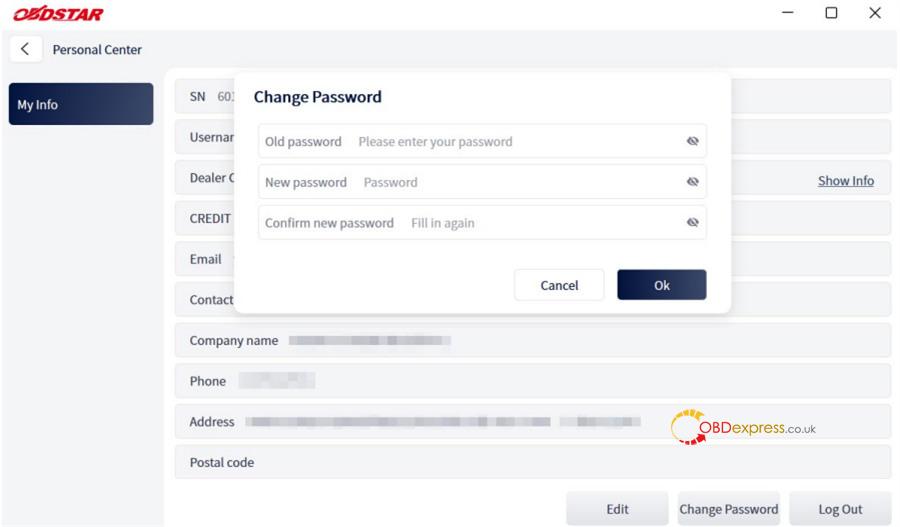
- Change Password: Tap Change Password (bottom of page) to reset credentials.
Learn more:
