


This guide explains how to complete the initial setup of the CGDI MONSTER G08 Key Cutting Machine. It covers the required calibration procedures and the online software upgrade process for first-time use.
Follow the instructions below to perform fixture offset detection, fixture calibration, tool changer height leveling, connect the machine to Wi-Fi, and install the latest software version.
Fixture Offset Detection
- Click Device Parameters on the Home page.
- Click Fixture Offset Detection on the Device Parameters
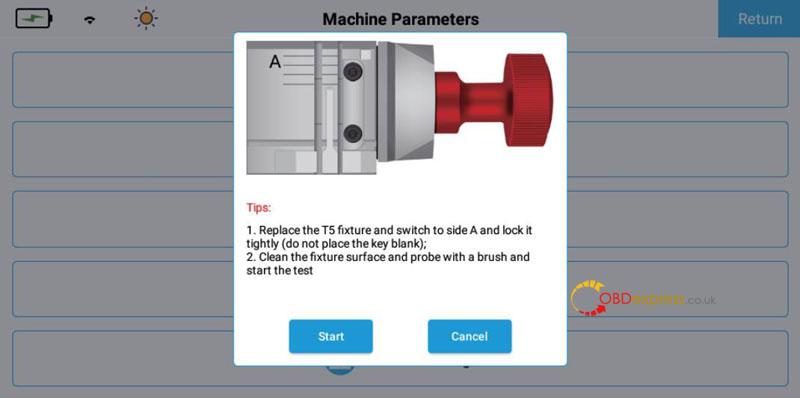
- For T5 Fixture Offset Detection, follow the on-screen instructions to replace the T5 fixture, keeping Side A facing upward, then click Start to begin the calibration procedure.
Fixture Calibration
- On the Home page, click Machine Parameters.
- On the Machine Parameters page, click Fixture Calibration.
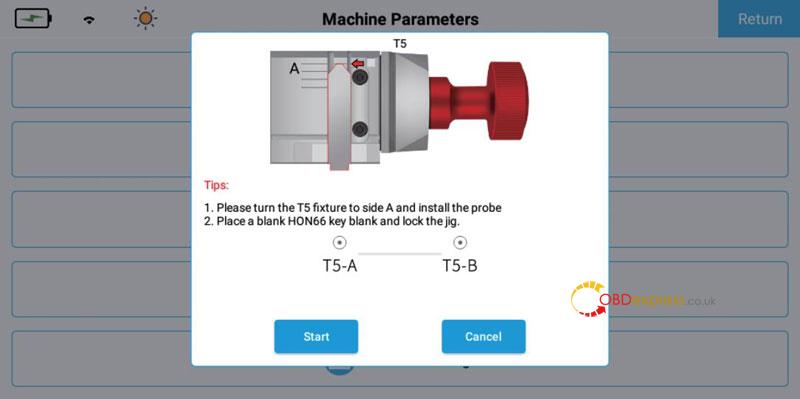
- Turn the fixture to Side A, place a HON66 key blank, lock the fixture, and click Start.
- After calibration is complete, remove the key blank, rotate the fixture to Side B, and click Continue.
- When calibration is complete, click Finish.
Tool Changer Height Leveling
- On the Home page, click Device Parameters.
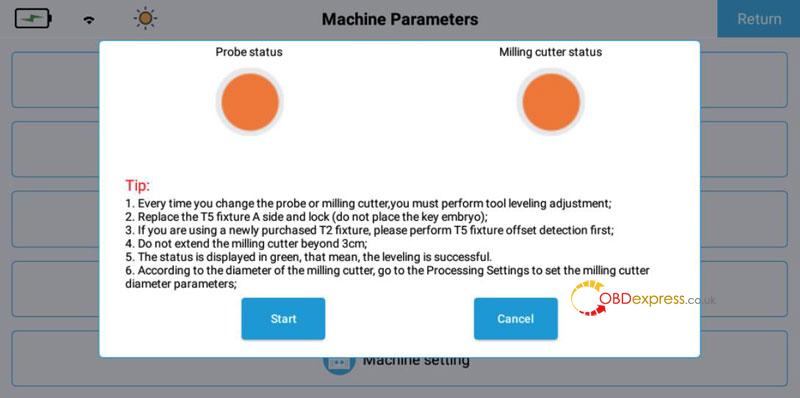
- Select Tool Changer Height Leveling.
- Follow the on-screen instructions to replace and lock the T5 fixture, then click Start.
- After the machine stops, adjust the milling cutter and probe until both indicators turn green.
- Lock the milling cutter and probe, then click Exit.
- Select the required milling cutter diameter and click Set and Exit to complete the setup.

Online Upgrade
Wi-Fi Connection
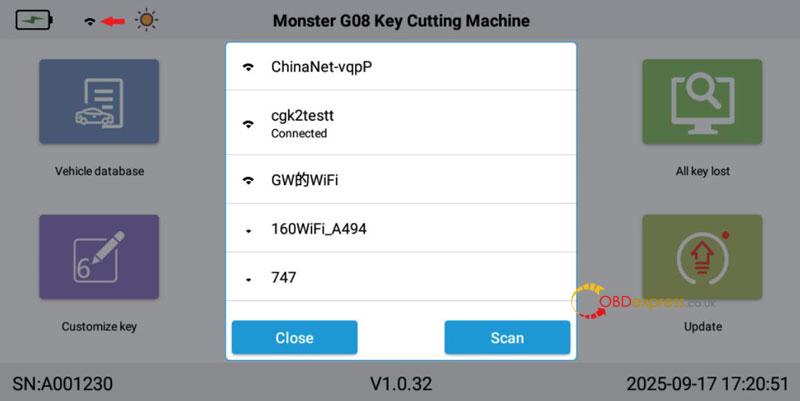
- On the Home page or Version Update page, click the Wi-Fi
- Follow the on-screen instructions to connect to a Wi-Fi network. Once connected, the Wi-Fi indicator will display the connected status.
Software Online Upgrade
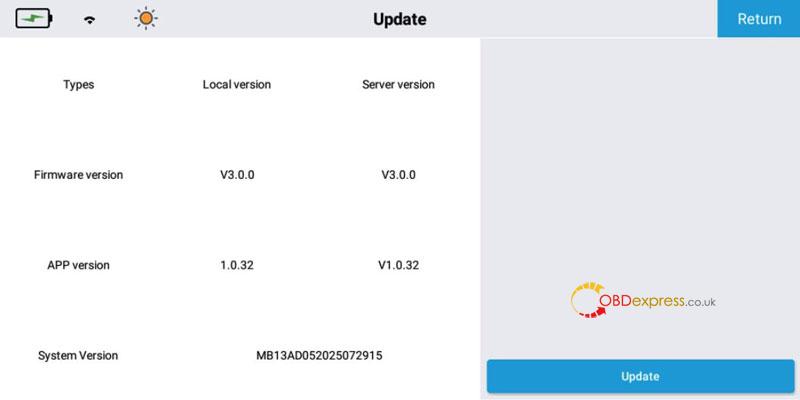
- On the Home page, click Update.
- If a new software version is available, the version information will be displayed in red. If not, the machine is already running the latest version.
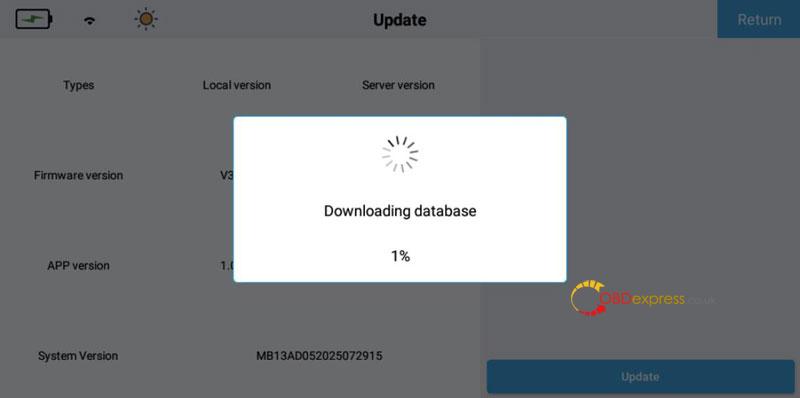
- Click Update, then click Yes in the confirmation dialog to download and install the latest version.
FAQ
Do I need to calibrate the CGDI MONSTER G08 before first use?
Yes. The initial calibration should be completed before using the machine. This includes fixture offset detection, fixture calibration, and tool changer height leveling.
Which fixture is used during the initial calibration?
The T5 fixture is used for fixture offset detection and tool changer height leveling. Follow the on-screen instructions during each procedure.
Which key blank is required for fixture calibration?
Use a HON66 key blank during the fixture calibration procedure.
How do I know when tool changer height leveling is complete?
When both the milling cutter and probe indicators turn green, lock them in place and complete the procedure.
How do I update the CGDI MONSTER G08 software?
Connect the machine to Wi-Fi, open Update, and install the available software version. If no update is shown, the machine is already running the latest version.
Read also
Xhorse Dolphin II vs CGDI Monster G08: How to Choose in 2026?
http://blog.obdexpress.co.uk/2026/01/29/xhorse-dolphin-ii-vs-cgdi-monster-g08-how-to-choose-in-2026/
