




If you have forgotten your screen unlock password on OBDSTAR X300 Classic G3 (Key Master G3), you will need to reflash the firmware.
CRITICAL WARNING: Reflashing erases all device settings and diagnostic software. If your subscription has expired, you cannot re-download software via one-click update. You MUST back up your DP software first.
Step 1: Backup Your DP Software (Mandatory)
- Insert a blank TF card (>16GB) into your OBDSTAR G3.
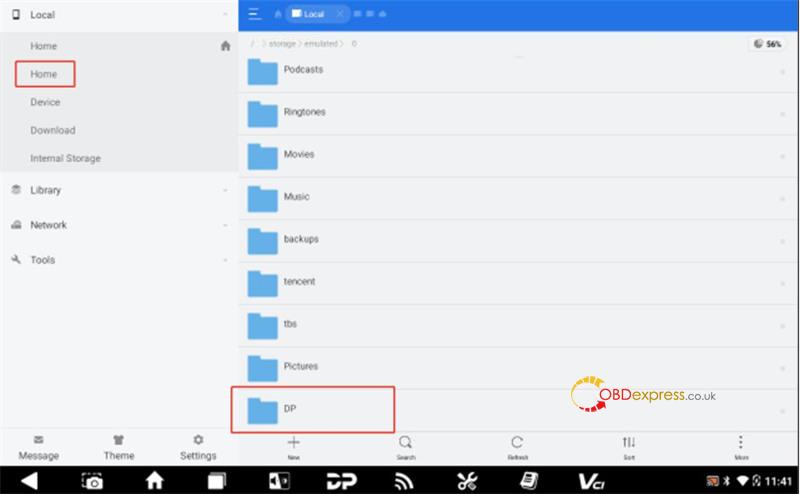
- From the main screen, open the ES File Manager.
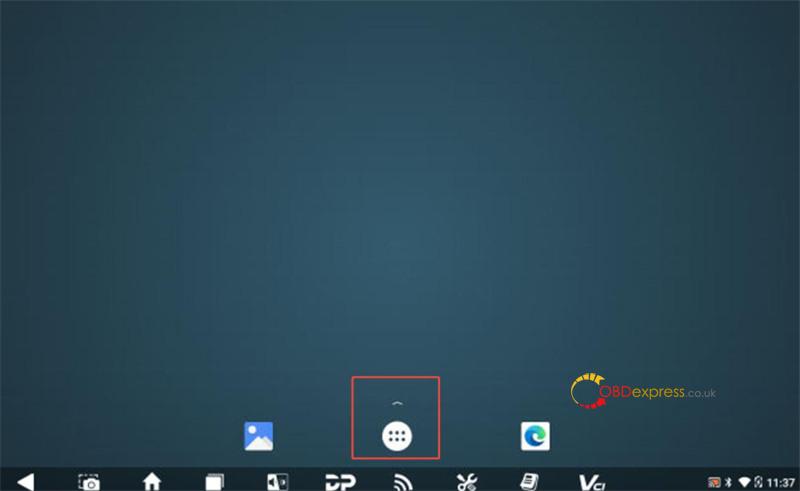
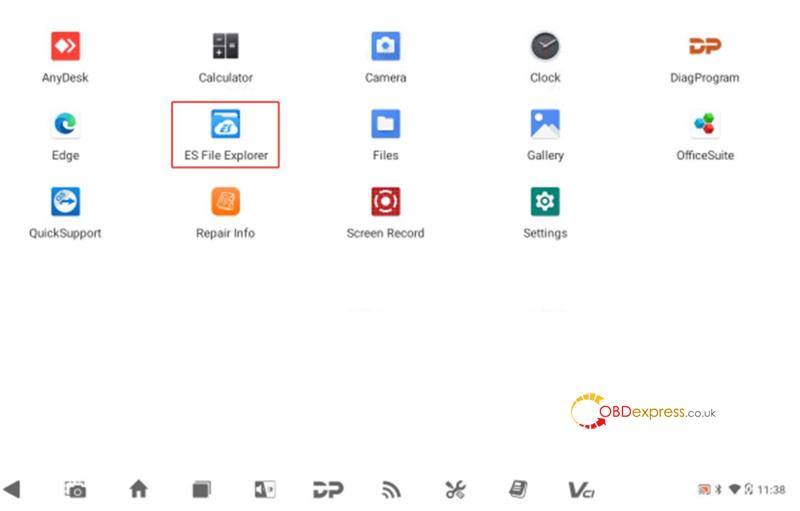
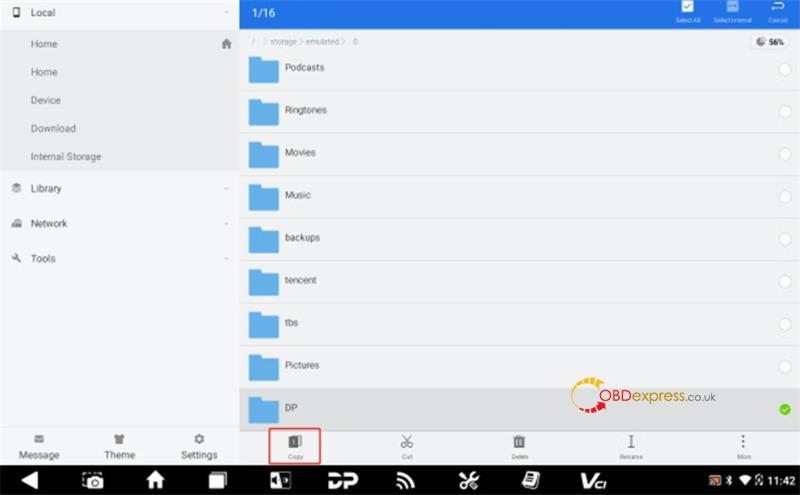
- Long-press the DP folder, then select Copy.
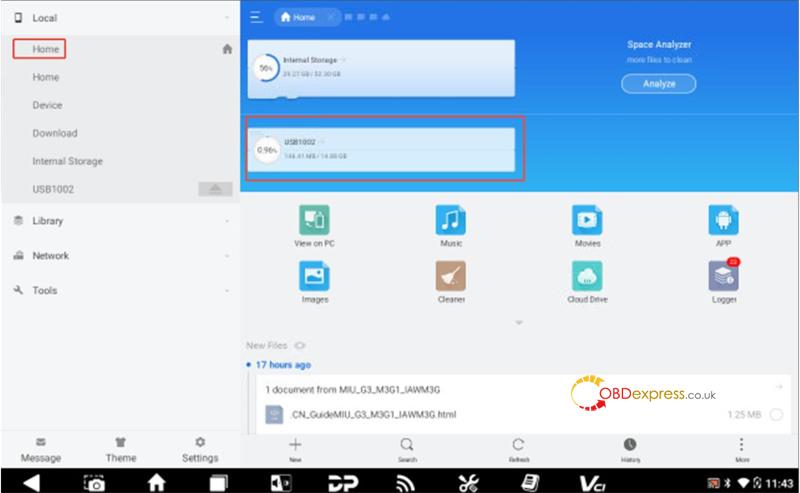
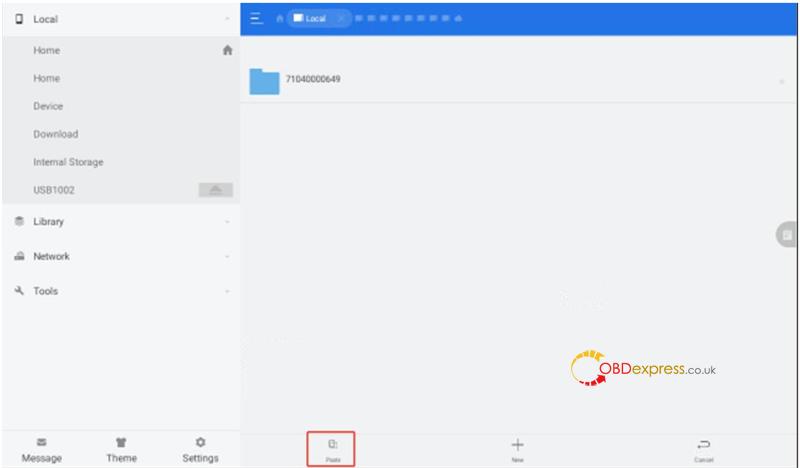
- Click the Home icon, select your External TF Card, and click Paste. (Once the firmware flash is complete, simply copy this DP folder back to the device to restore your software).
Step 2: Download Necessary Files
Because the firmware package is exceptionally large, contact www.obdexpress.co.uk customer service to download:
- SD Firmware Tool (v1.75)
- G3 Reflash File (img)
Step 3: Create the Upgradable TF Card
Note: This requires a PC, a separate TF card (>4GB), and a card reader. This process erases all data on the card.
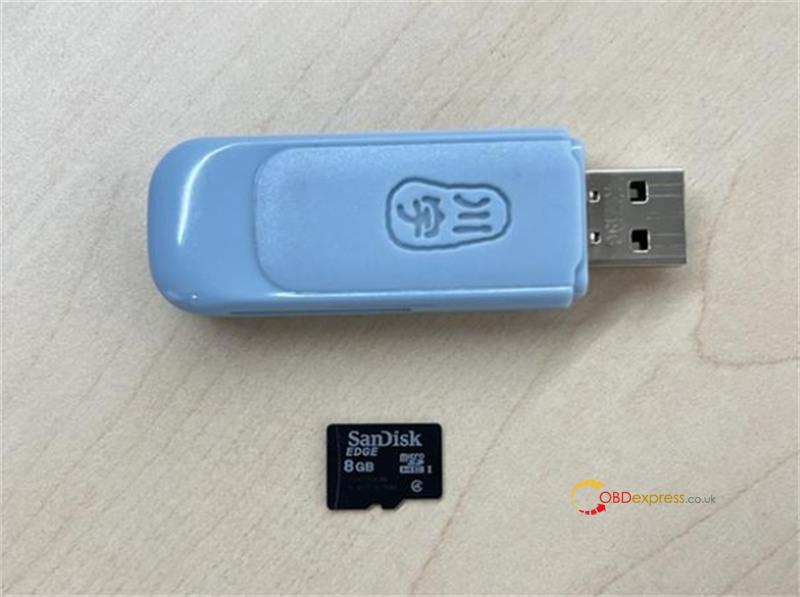
- Insert the TF card reader into your computer’s USB port.
- Extract and run exe.
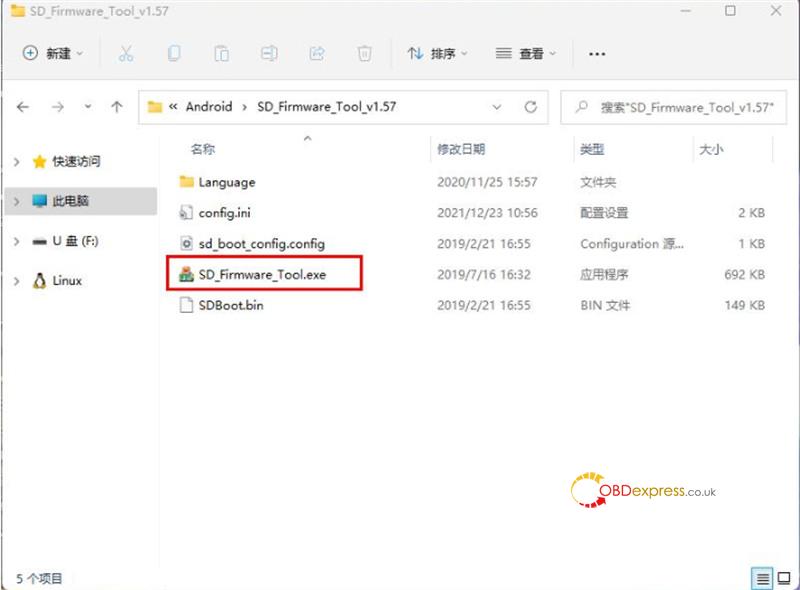
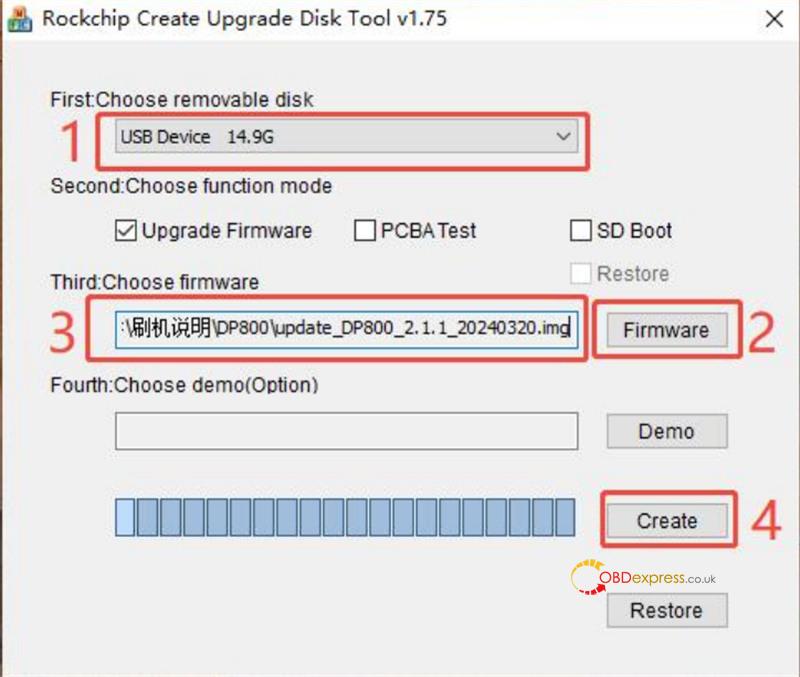
- Ensure your TF card is detected by the software.
- Click Firmware and select your downloaded img file.
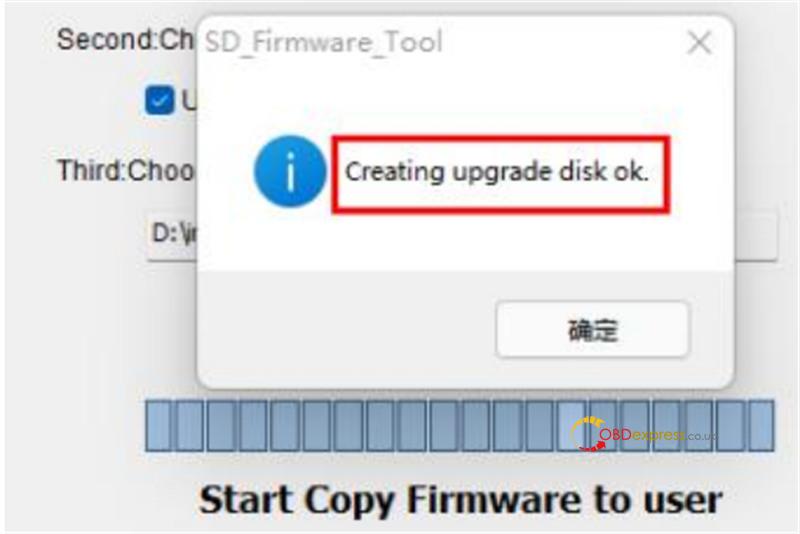
- Click Create and wait until you see the prompt: “Creating upgrade disk ok”.
Step 4: Flash the Firmware on OBDSTAR G3
- Connect X300 Classic G3 to its power adapter (do not rely on battery power).
- Insert the prepared upgrade TF card into the tablet.
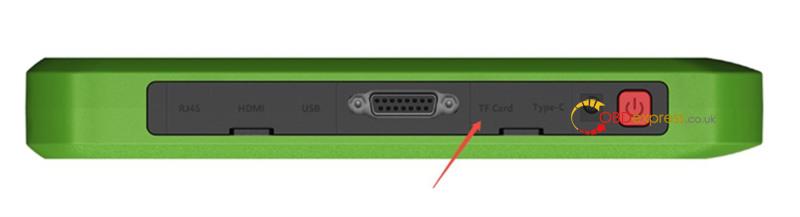
- Long-press the power button and tap Restart.
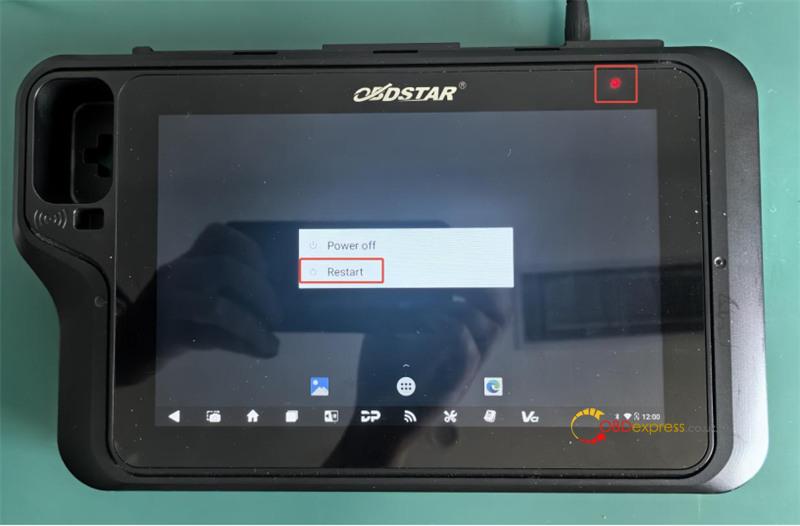
- The tablet will automatically start the update via an on-screen progress bar.
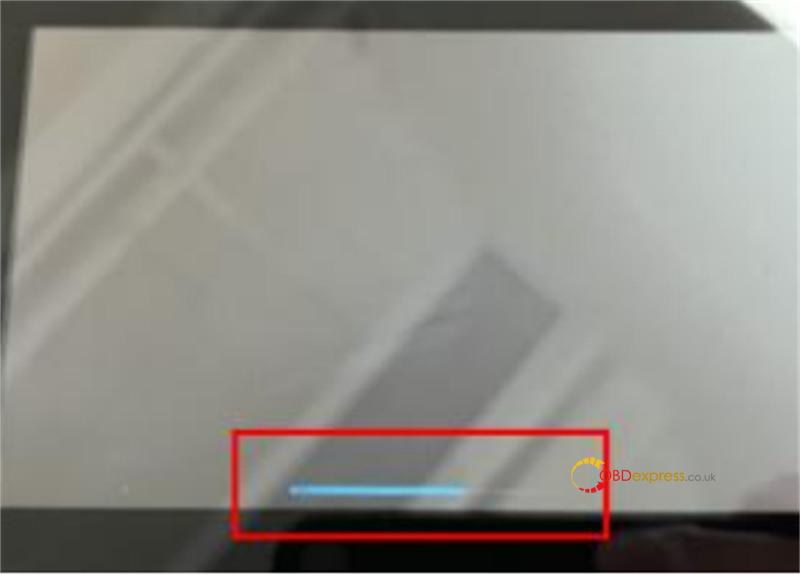
- Once the screen reads: “Doing Actions succeed. please remove the sdcard”, remove the TF card immediately. The device will reboot into the fresh system.
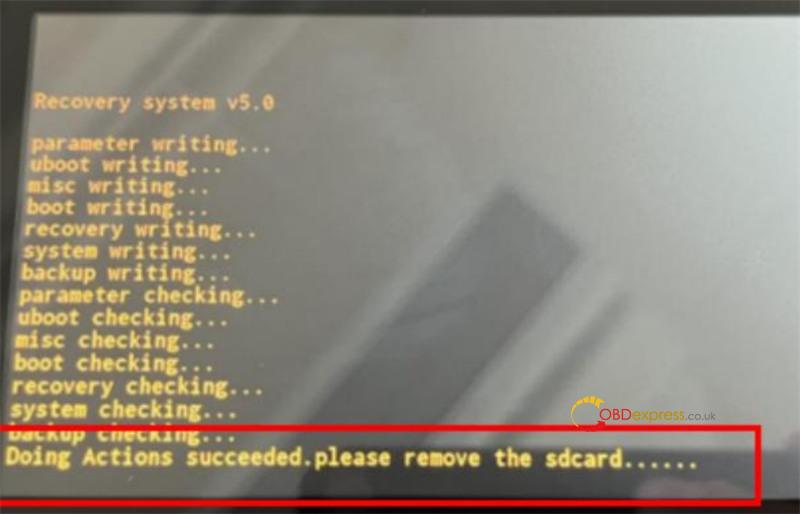
Read also:
OBDSTAR X300 Classic G3 Register, Update and Transfer Files Guide
(Visited 97 times, 1 visits today)
