



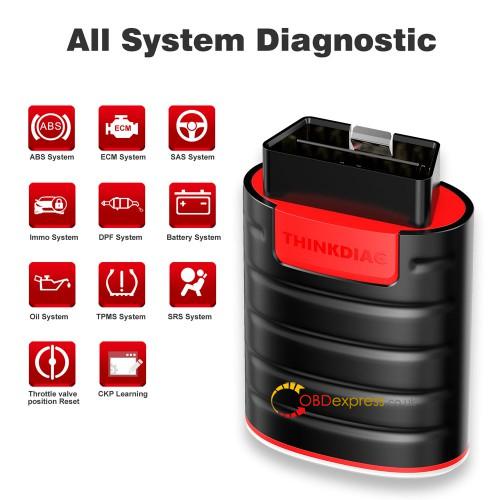
The THINKCAR Thinkdiag device works with the app for vehicle diagnostics and OBD functions. This guide covers device activation, diagnostic software download, vehicle connection, and Bluetooth connection.
Activate the Device
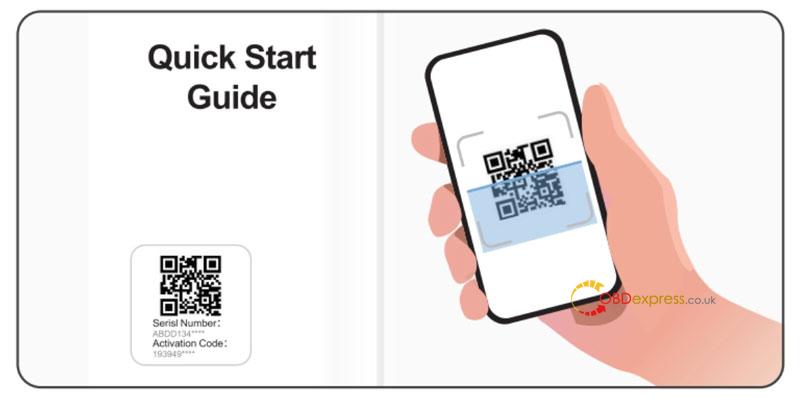
Use the serial number and activation code from the English Quick Start Guide, or scan its QR code.
- Open the app and tap “Me” in the upper-right corner.
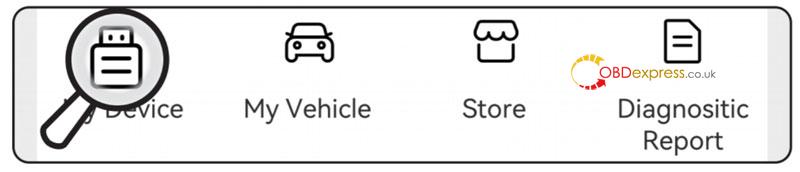
- Tap “My Device >> Activate Device”.
- Scan the QR code, or enter the activation code and serial number manually to complete the binding.


Download Diagnostic Software
When using “Enhanced Diagnostics” or “OBD Functions” for the first time, open “Diagnostics” in the app and download the corresponding diagnostic software.
The software only needs to be downloaded once.
Connect the Device to the Vehicle
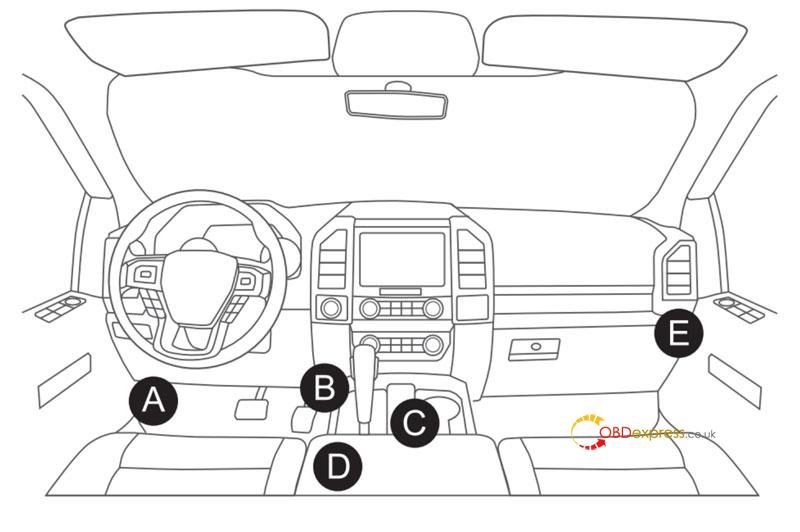
- Locate the vehicle’s OBD-II port, typically under the dashboard above the pedals on the driver’s side.
- Insert the device into the OBD-II port.
- A green light indicates that the device is powered on.
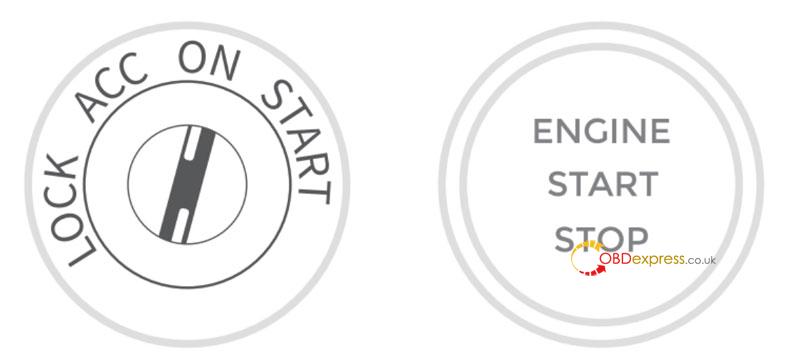
- Turn the ignition to the “ON” position.
Connect via Bluetooth
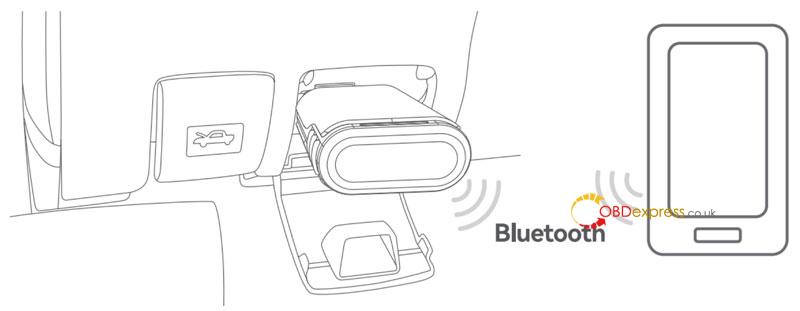
- Open the ThinkDiag App. It automatically searches for activated devices.
- Select the correct device and connect through Bluetooth within the app.
- Do not pair the device directly through your phone’s Bluetooth settings.
- After the Bluetooth connection is established, the device is ready to use.
Indicator Lights
| Light | Meaning |
| Green — always on | Device is powered on but not connected to the app |
| Blue — always on | Device is connected to the app |
| Blue — flashing | Device is working |
| Red — always on | Firmware is updating or the update has failed |
| Off | Device is in sleep mode |
FAQ
- What do the different lights on the device indicate?
See the Indicator Lights table above for the meaning of each light.
- Why do I need to download diagnostic software after downloading the app?
Different vehicle manufacturers require different diagnostic software. The device identifies the vehicle manufacturer and downloads the corresponding software to ensure compatibility.
The software only needs to be downloaded once.
- Does the device need a firmware upgrade?
Yes. When connected to a smartphone via Bluetooth, the device automatically checks for firmware updates and updates when necessary.
Do not disconnect the device during the firmware update.
- Can the same app account bind to multiple devices?
Yes. Multiple devices can be bound to the same account through the app.
- What should I do if I experience a Bluetooth connection issue?
- Make sure the device is powered on. If necessary, try connecting it to another vehicle.
- Check that the SN printed on the device matches the SN shown in the Bluetooth list. If you have multiple devices, select the correct one under “My Devices”.
- Android: Unpair the device from the Bluetooth list, pair it again, then connect through the app.
- iOS: Connect directly through the app without pairing the SN in the phone’s Bluetooth settings.
