





Learn how to update firmware on TOPDON BT600 Battery Tester and enable report sharing via QR code.
Step-by-Step Operation Guide
- Prepare Your Cable: Have a Mini-USB or USB-C data cable ready.
- Software Setup:
- Download:
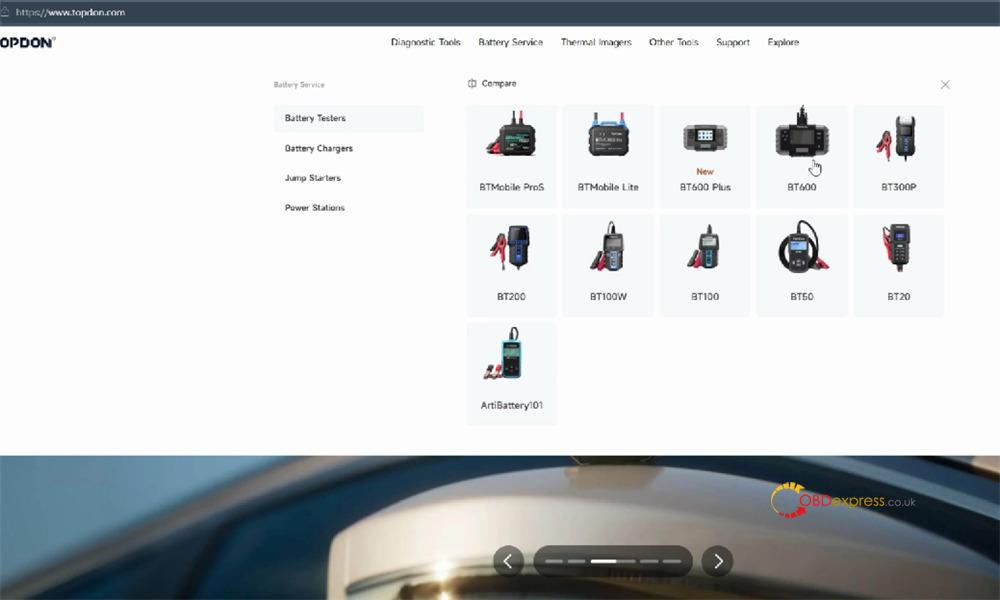
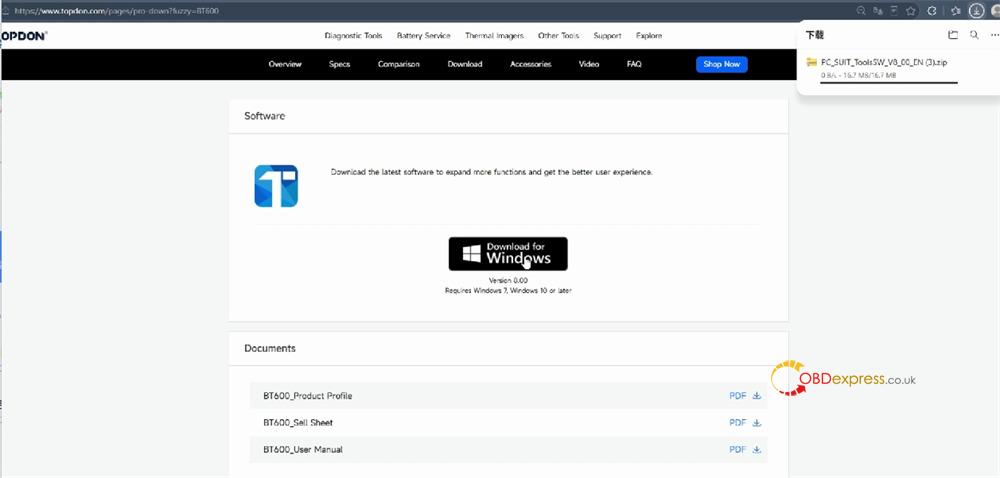
Visit official website Topdon.com, navigate to Battery Service-> BT600-> Download-> Download for Windows
- Install:
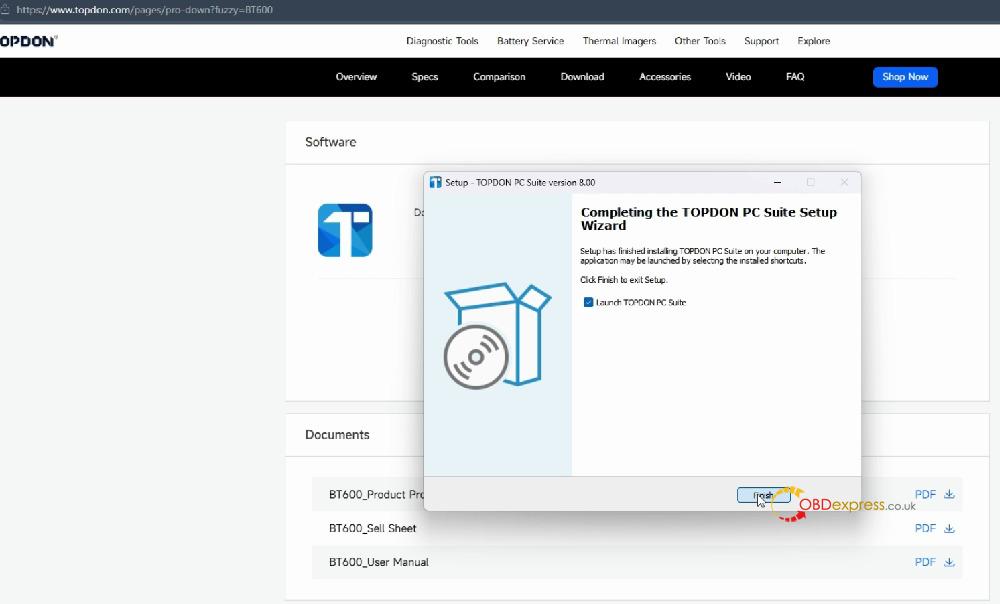
Open the PC software to install directly
- Login:
After installation, open PC software and log in with your registered official account
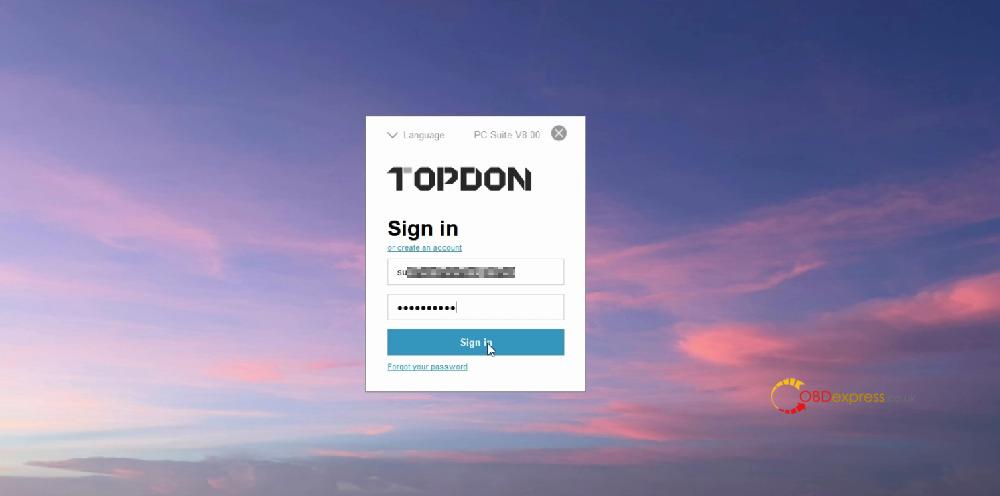
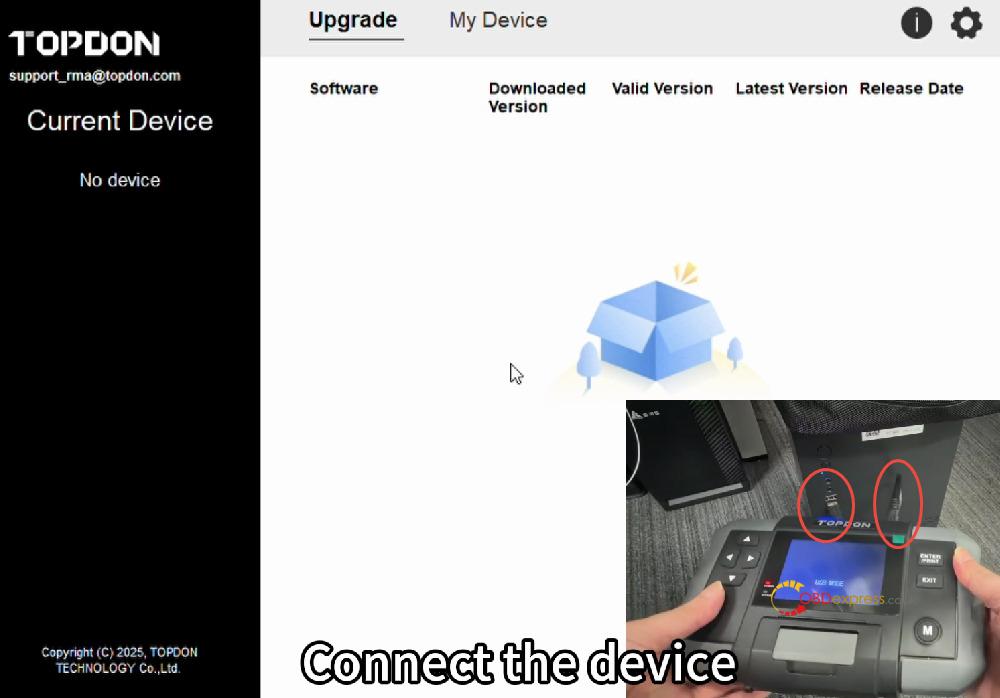
- Device Connection:
Connect TOPDON BT600 to your computer via USB cable
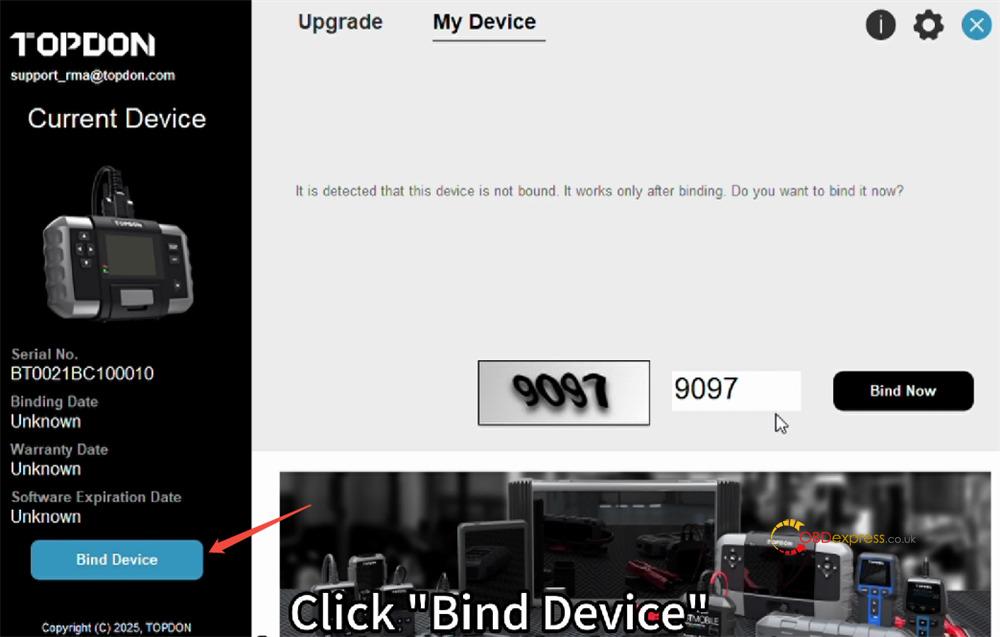
Click “Bind Device” and input the code to bind
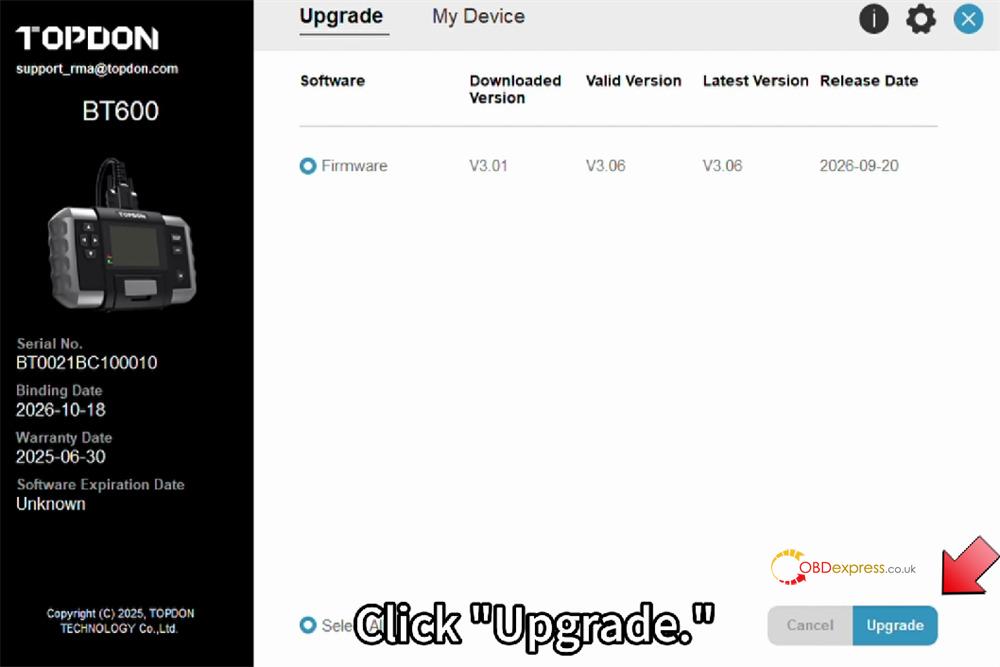
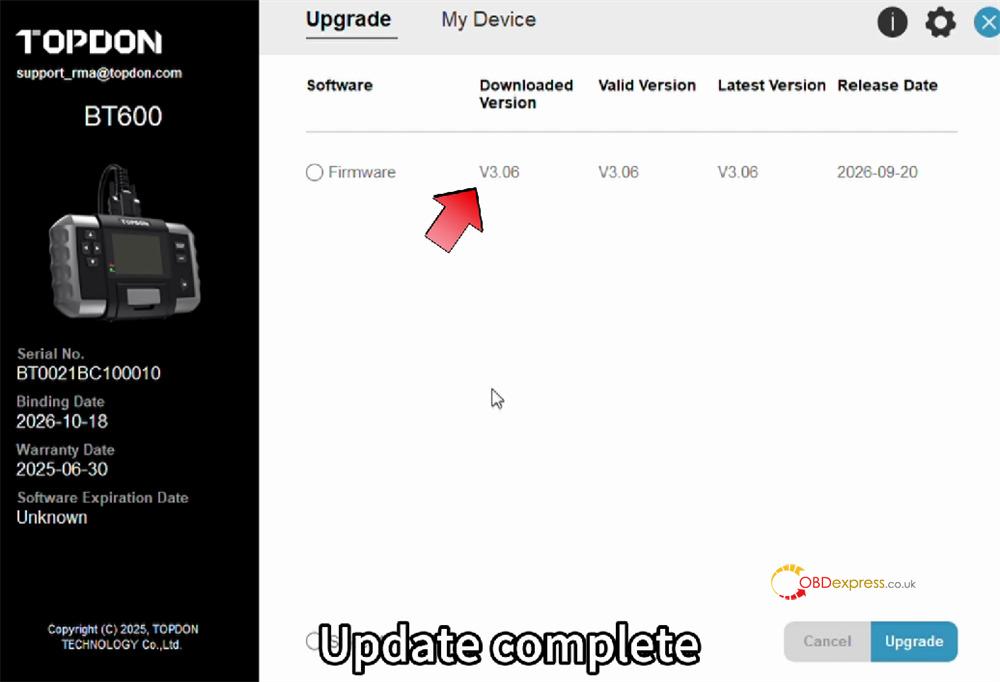
- Firmware & Version Check: Perform a firmware update and verify the current software/firmware version display.
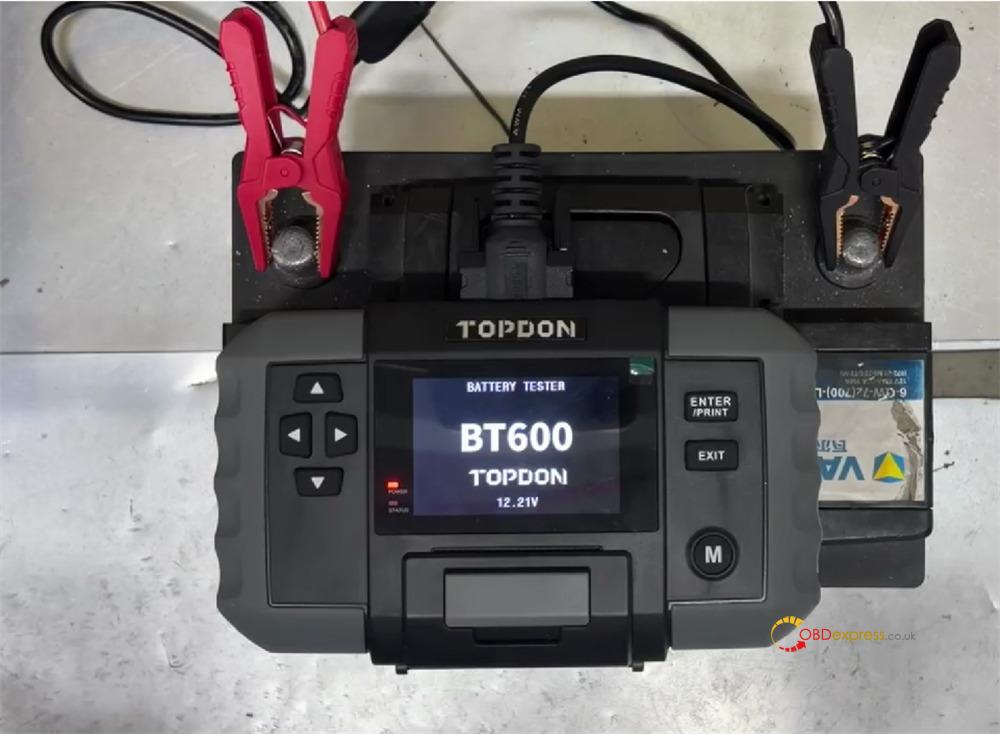
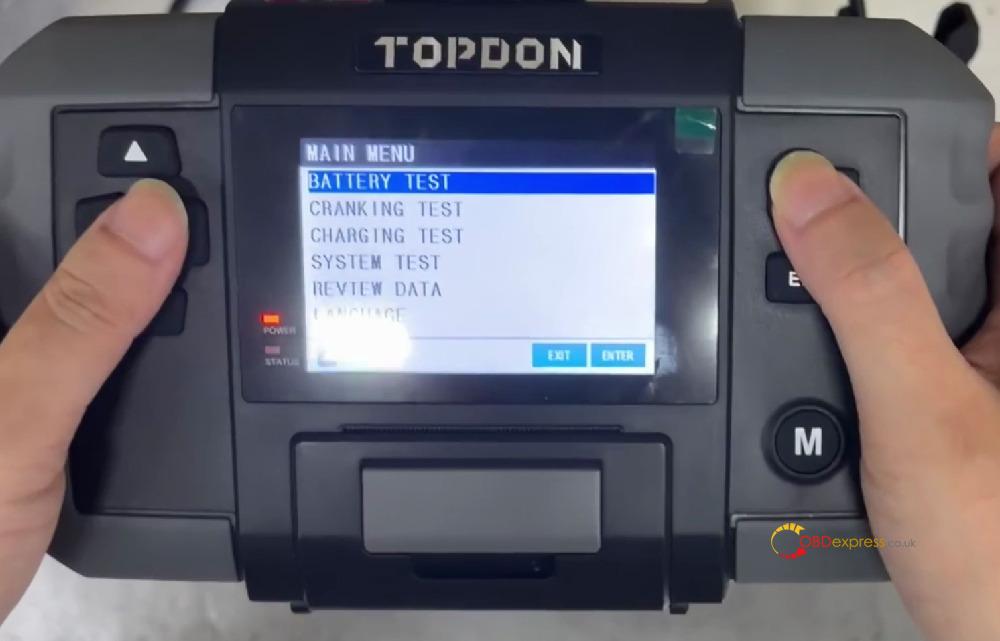
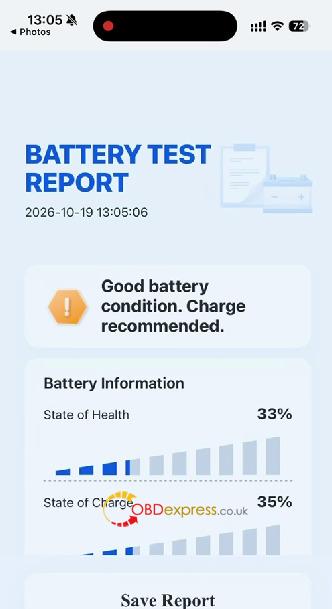
- Battery Testing: Follow the demonstration to run a battery test.
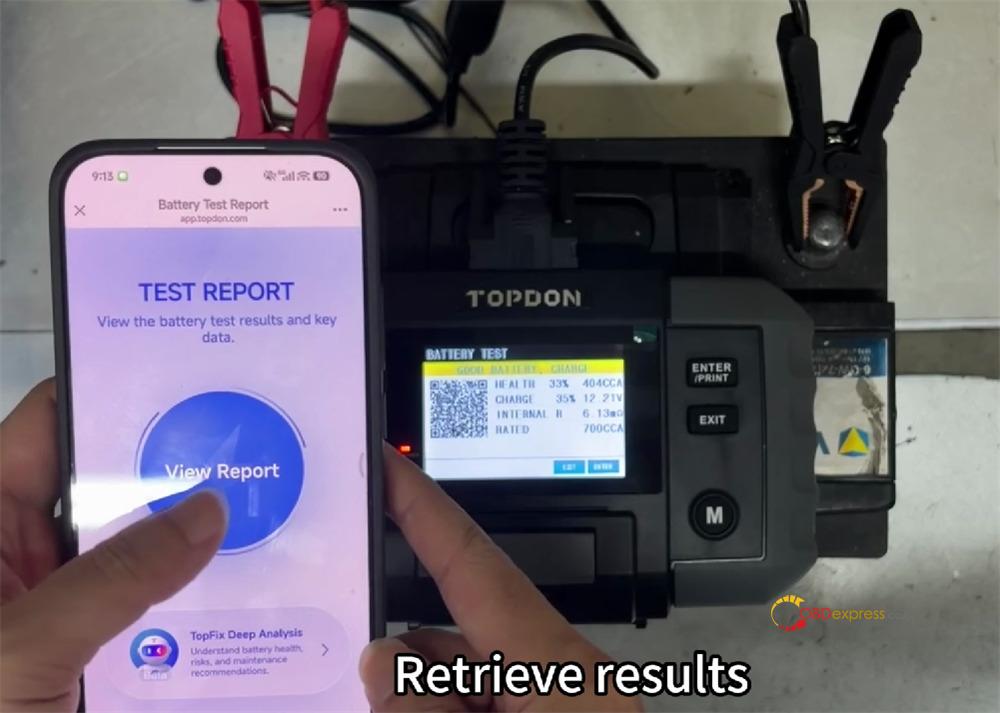
- QR Code Scanning: Follow the demonstration to use the QR code scanning function.
Important Notes:
- Cable Compatibility: Units manufactured after 2025 feature a USB-C port rather than Mini-USB—make sure to use the matching data cable.
- Connection Troubleshooting: If the PC software does not recognize the unit, unplug all other USB peripherals and connect only this device to prevent port or driver conflicts
Read also:
Topdon Battery Tester: BT600, BT300P, BT100W, MobileProS Compared
(Visited 4 times, 4 visits today)
