






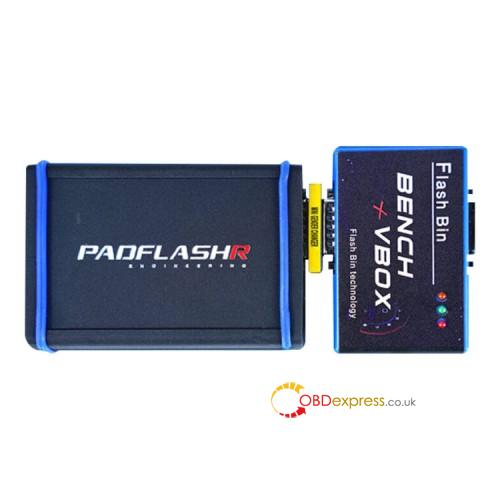
This guide provides the necessary technical procedures to update your PADFLASH ECU Diagnostic Tool to version 1.02. Follow these instructions precisely to ensure hardware stability and software compatibility.
- Version Overview & New Features
The v1.02 release introduces critical stability patches and expanded vehicle support:
- MEDC17 Checksum Fix: Resolves calculation errors during ECU read/write operations.Enhanced OS Support: Full compatibility with Windows 7 (SP1), 10, and 11 (32/64-bit).
- Improved USB Stability: New reconnection logic and a dedicated “Connection Lost Solution” utility to manage USB power states.
- Driver Signing: Updated “Super Driver” featuring valid Microsoft SHA-256 signatures for Windows 10/11 enforcement.
- System Requirements
Before installation, ensure your workstation meets the following specifications:
| Component | Requirement |
| Operating System | Windows 7 SP1, 10, or 11 (32/64-bit) |
| USB Connectivity | Mandatory powered USB 2.0 or 3.0 hub (included in package) |
| Memory (RAM) | 2 GB minimum (4 GB recommended) |
| Storage | 500 MB free disk space |
| Security | Hardware Security Dongle (must share the same hub as the device) |
- Hardware Configuration
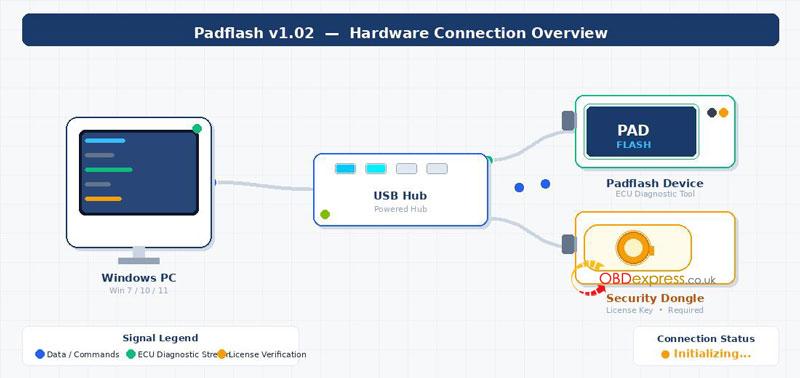
Proper hardware sequencing is vital for device enumeration:
- Connect the Powered USB Hub to your Windows PC.
- Plug the PADFLASH Device into the hub.
- Plug the Security Dongle into a separate port on the same hub.
Note: Avoid using USB extension cables for the dongle.
- Step-by-Step Installation Procedure
Complete these phases in exact order to avoid connection failures.
Phase 1: Software Update
Uninstall: Remove previous Padflash versions via Control Panel.
Install Updater: Run PadflashUpdater_Setup.exe as Administrator.
Update: Open the Updater, click Update, and wait for the v1.02 download to finish.
Restart: Close and reopen the Updater to initialize firmware.
Phase 2: Driver Setup
Super Driver: Right-click superdriver.exe and select Run as Administrator. Click Install Driver.
Padflash Driver Tool: Open the tool, click Install, and accept all prompts.
Phase 3: System Optimization
Connection Lost Solution: Run this utility as Administrator.
Configure: Select Disable USB Sleep and Gain Admin Rights.
Security: Select Disable AV & Firewall (can be re-enabled after initial testing).
Phase 4: Finalization
Reboot: Perform a mandatory cold restart of the computer.
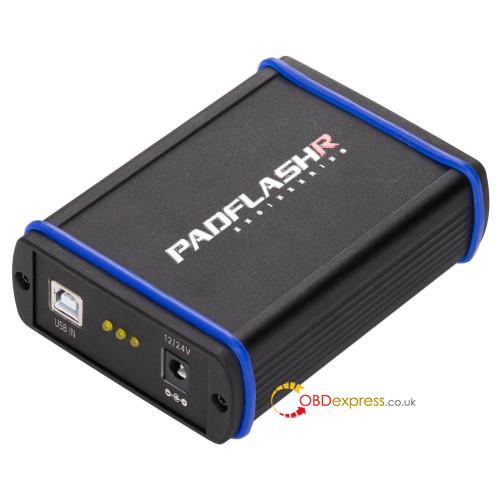
Launch: Right-click the Padflash V2 desktop icon and select Run as Administrator.
- Troubleshooting Reference
| Symptom | Recommended Action |
| Device not detected | Reconnect hardware to the hub; re-run Super Driver. |
| Connection Lost error | Use the “Connection Lost Solution” to disable USB Sleep and reboot. |
| Driver install fails | Temporarily disable Windows Defender/antivirus; ensure Admin rights. |
| Checksum errors | Confirm the title bar displays version 1.02. |
Important: Always launch Padflash V2 using Run as Administrator. Failure to do so is the primary cause of licensing and connection errors.
